Test & rotate Filevine credentials
Validate a Filevine credential, disable it temporarily, or rotate its Client Secret and PAT when they change.
A Filevine credential is the bridge between VineMerge and your firm's Filevine data — and like any bridge, it needs a check-up now and then. This article shows you how to test a credential, toggle it off temporarily, and rotate its secrets when Filevine changes them.
Test a credential
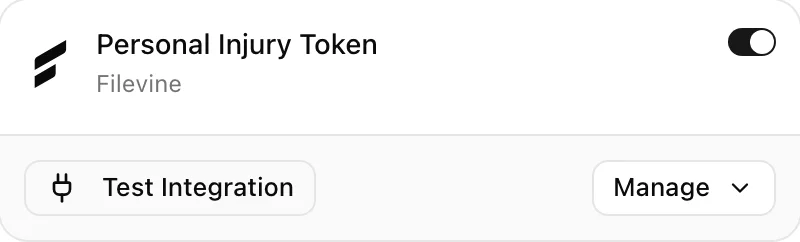
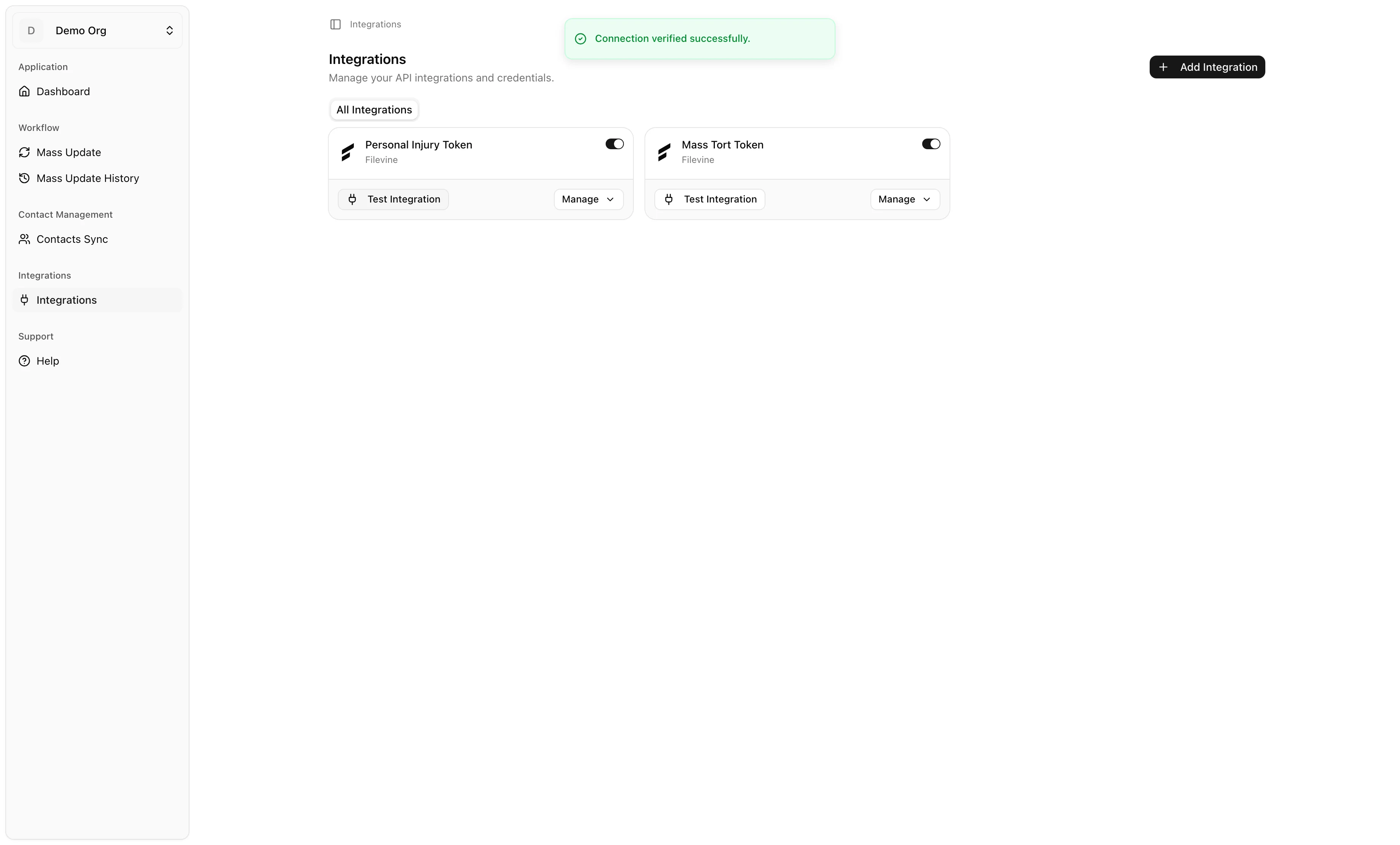
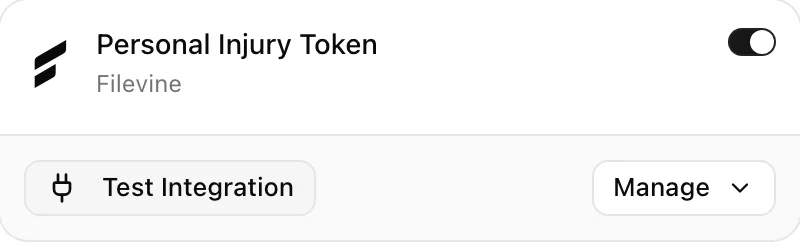
Each credential card on the Integrations page has a Test Integration button at the bottom. Clicking it sends a live request to Filevine using the stored Client ID, Client Secret, and PAT — exactly the way a real workflow would — and reports back whether the credential is still valid.
- Open Integrations from the sidebar.
- Find the credential card you want to check.
- Click Test Integration. You'll see a brief loading spinner.
- Read the toast message that appears:
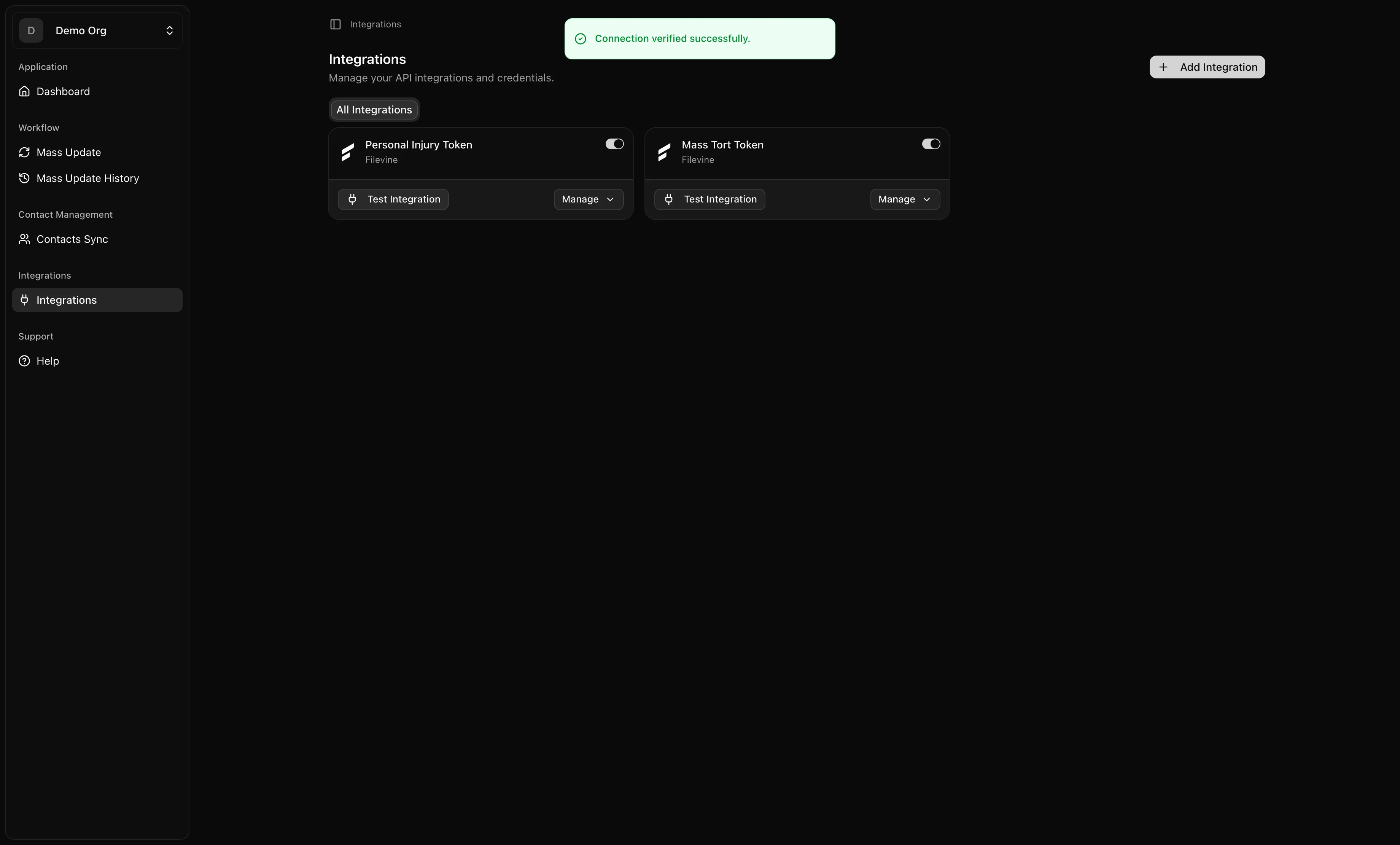
- On success: Connection verified successfully.
- On failure: Connection test failed. (Filevine sometimes returns a more specific error — VineMerge passes that through when available.)
Test a credential whenever you:
- Just rotated the Client Secret or PAT in Filevine.
- Hit an unexplained failure on a bulk update or schedule transfer.
- Haven't used a credential in a few weeks and want to confirm it still works before kicking off a large run.
Disable a credential without deleting it
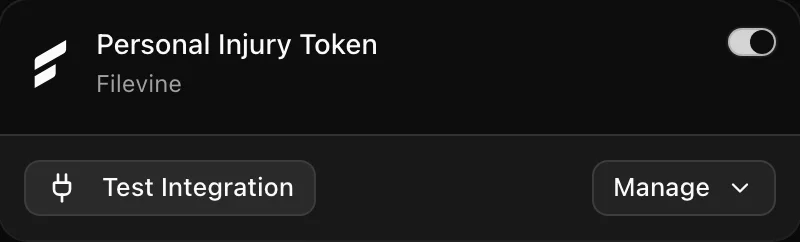
Every credential card has an Active toggle in the header. Switching it off does not delete anything — it simply tells VineMerge to stop using that credential until you flip it back on.
Use the toggle when you want to:
- Temporarily take a credential offline during firm-side maintenance.
- Force workflows onto a different credential (handy when troubleshooting which one is in use).
- Park an old credential while you decide whether to keep it.
Disabled credentials cannot be selected by any workflow. The card dims to make the state obvious. You'll see a confirmation toast — Integration enabled. or Integration disabled. — each time you flip the switch. Re-enable any time by toggling it back on.
Rotate the Client Secret or PAT
Secrets do not last forever. Filevine PATs expire on a schedule, and your firm's security policy may rotate Client Secrets periodically. When that happens, paste the new values into the existing credential rather than deleting and recreating it — workflows pointed at the credential keep working without reconfiguration.
- On the credential card, click Manage.
- Choose Edit Credential from the dropdown.
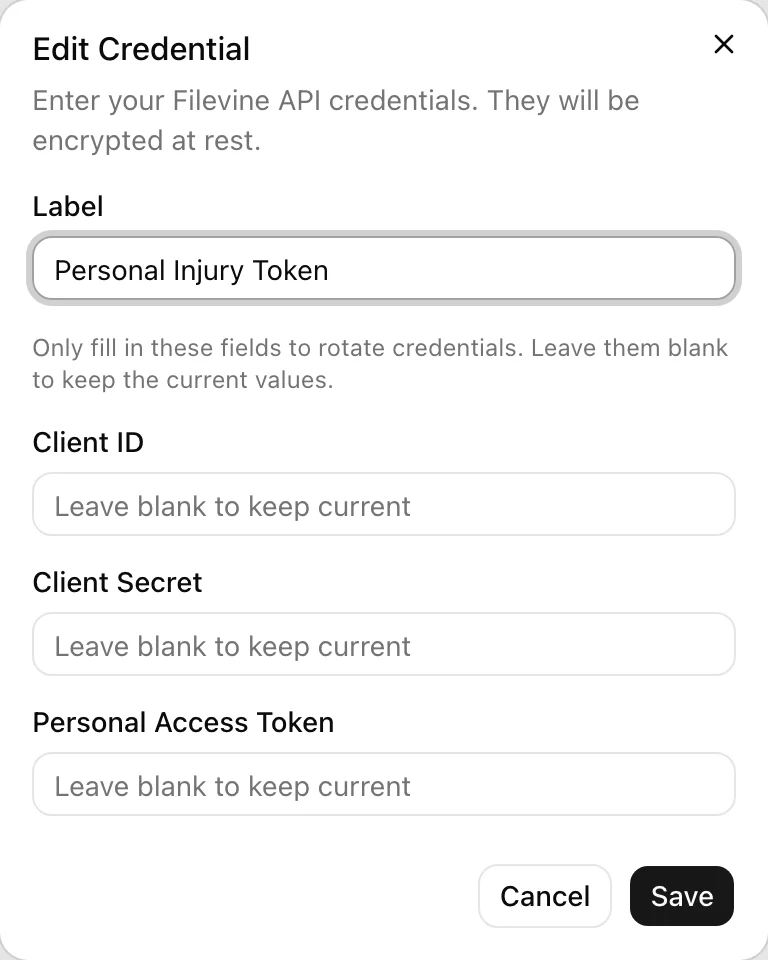
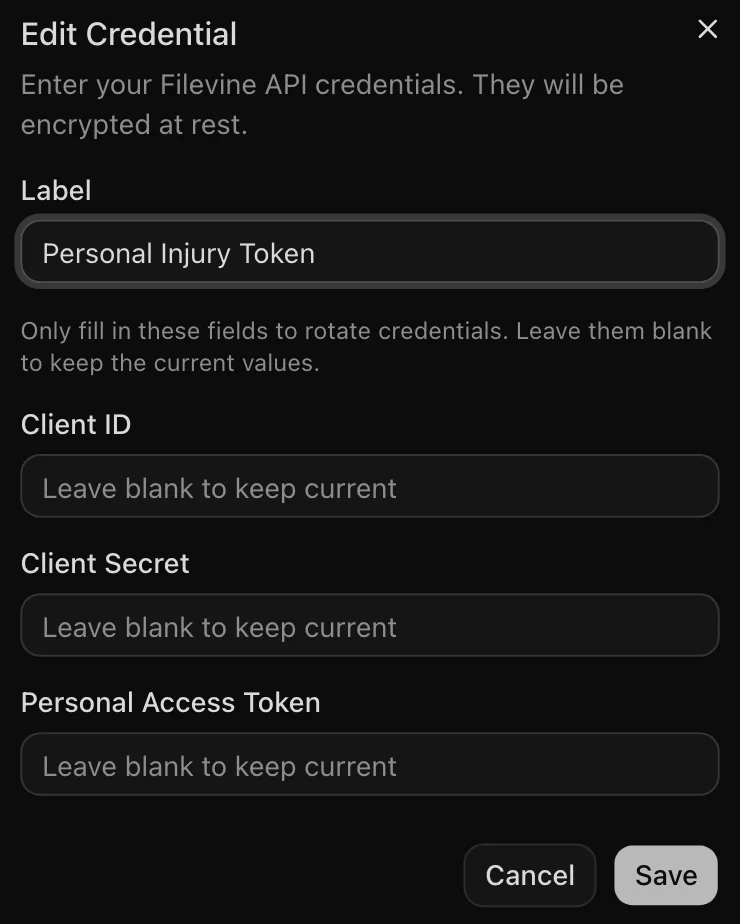
- The dialog reopens with the Label populated. The secret fields are blank — VineMerge never displays stored secrets back to you.
- To rotate, paste the new Client ID, Client Secret, and Personal Access Token into all three fields. (Leave any field blank to keep its current value, but a full rotation is usually safest.)
- Click save. VineMerge re-validates the credential against Filevine and shows a result toast.
Rotate when:
- Filevine has issued a new Client Secret under your firm's rotation policy.
- A PAT has expired or is about to.
- You suspect a secret was leaked or shared outside the team.
Just renaming? You can edit the Label on its own — leave the Client ID, Client Secret, and PAT fields blank and save. VineMerge will update the label without re-validating, so a quick rename never risks marking a working credential as failed.
Troubleshooting a failed test
If Test Integration keeps failing, check these in order:
- PAT expired in Filevine. This is the most common cause. Generate a fresh PAT in Filevine and rotate it via Edit Credential.
- Client Secret rotated but not pasted. If Filevine rotated the secret on their side, your stored value is now stale. Rotate it via Edit Credential.
- Filevine outage. If Filevine itself is down, every credential will fail at the same time. Wait a few minutes and re-test.
- Wrong values pasted originally. If a credential has never validated successfully, the easiest fix is to delete it and create a new one — see Connecting Filevine.
As a rule of thumb: edit when the credential used to work and just needs new secrets; delete and recreate when something about the original setup looks wrong (wrong provider, wrong Filevine org, typo in the Client ID).