Invite your firm's team
Add teammates to your VineMerge organization so they can help run operations.
Bring teammates in early. A single bulk update can touch every project your firm cares about, so other paralegals, admins, and IT staff benefit from having their own visibility and audit-log access from day one.
Finding the invite flow
From any page in VineMerge, open the account menu in the top-right corner and go to Organization Settings → Members → Invite member. This is where you'll manage everyone who has access to your firm's workspace.
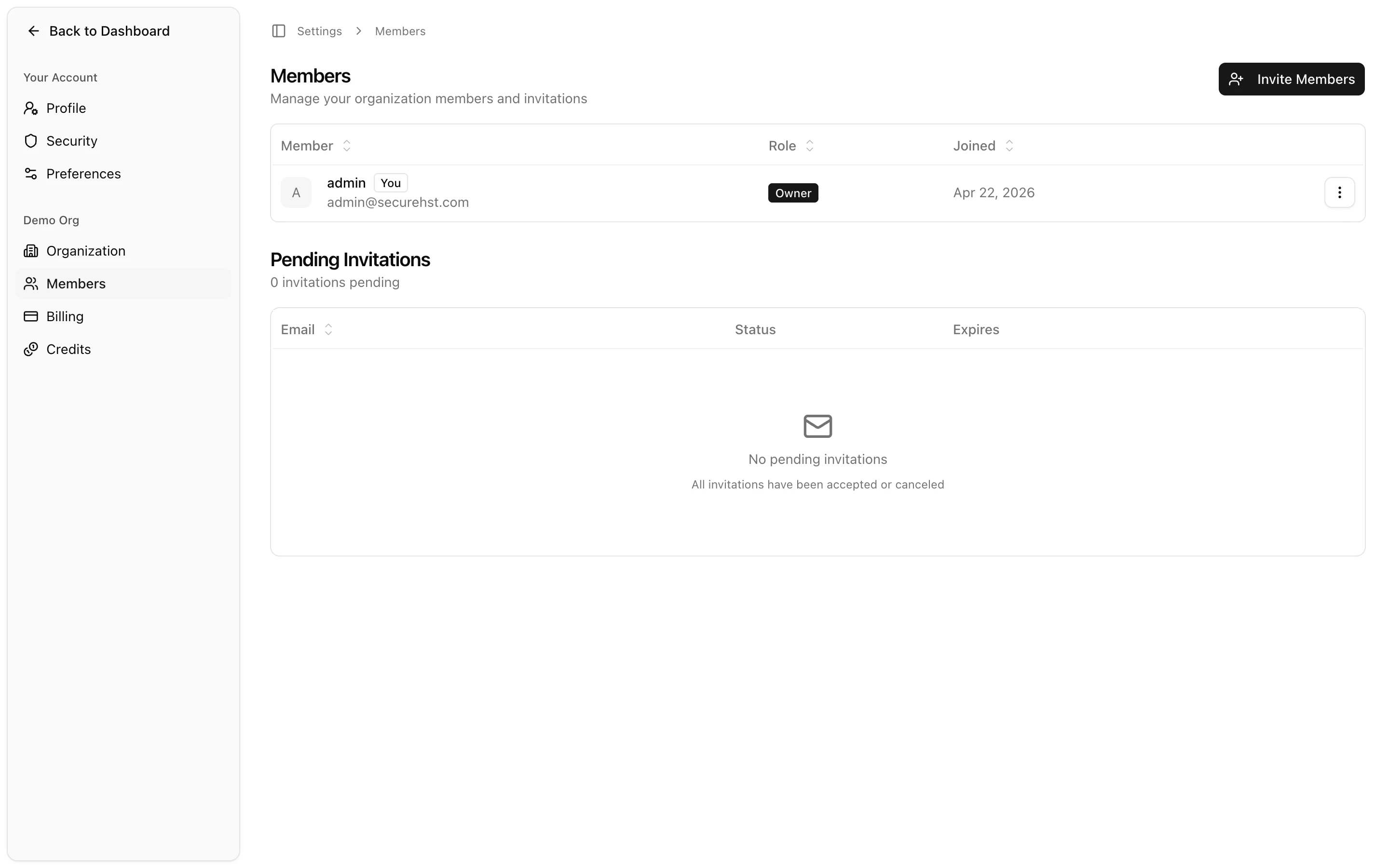
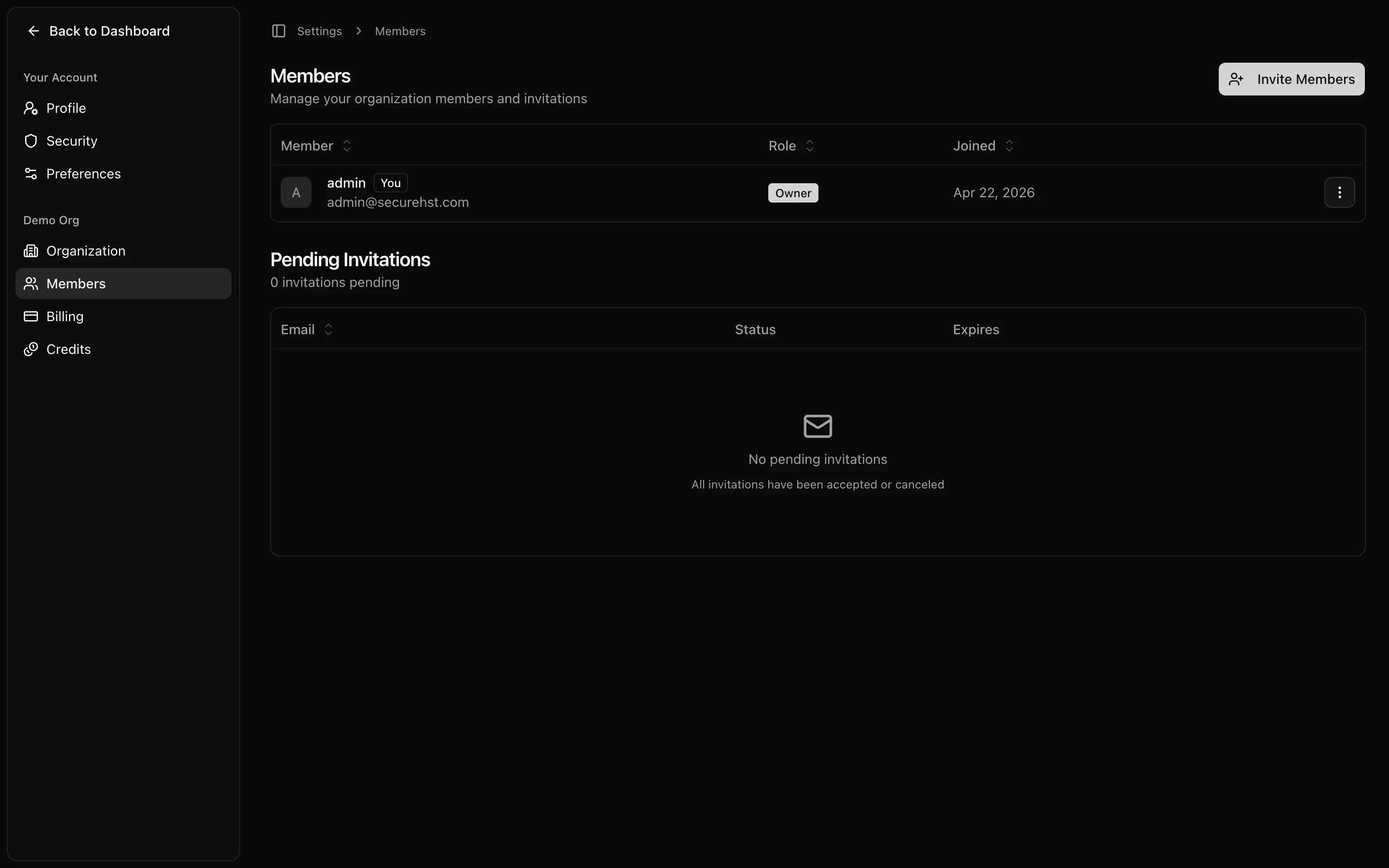
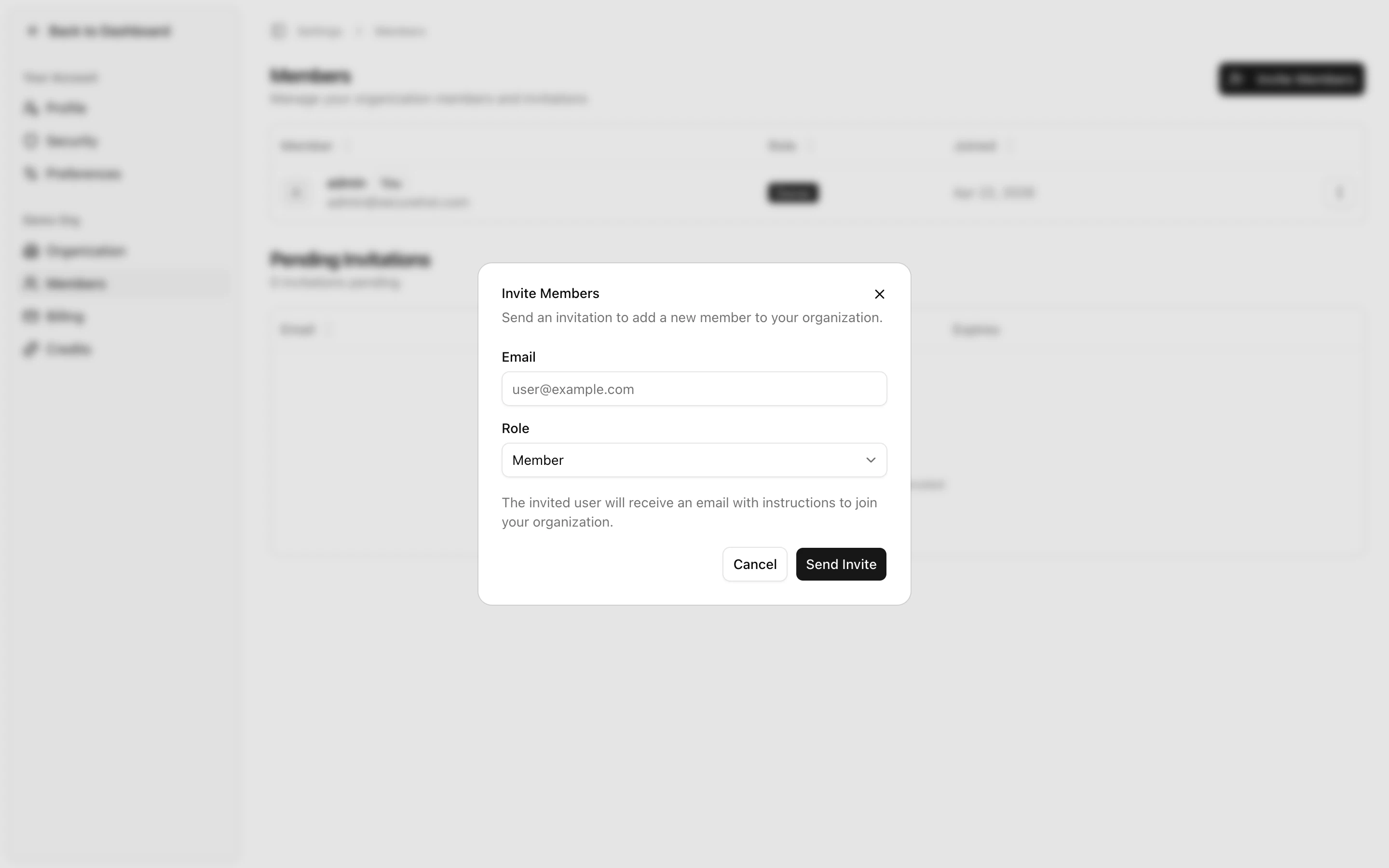
Sending an invite
- Enter one or more email addresses, separated by commas.
- Pick a role for the invitees. The role controls what they can do once they join — the defaults are safe for most teammates, so when in doubt, leave the preselected option.
- Click Send invites.

What your teammate sees
Each invitee receives an email from VineMerge with an Accept invite button. Clicking it walks them through creating their own password (or signing in with an existing account), and drops them straight into your organization's dashboard — no extra setup on your end.


Roles at a glance
- Admin — full access, including managing members and billing.
- Member — can run bulk updates and broadcasts on Filevine data.
- Viewer / read-only — can see activity and audit logs, but can't make changes.
Exact role names and permissions may differ slightly in the product. See Managing Your Team for the authoritative list.
Next steps
Once your team is in, head over to the Managing Your Team category to learn about changing roles, removing members, custom roles, and advanced governance.
Need help with this topic right now? Contact support.