Create your account and organization
Sign up, verify your email, and set up your firm's organization in VineMerge.
Getting into VineMerge takes about two minutes. This article walks you through creating your account, verifying your email, and naming your firm's organization so your team has a shared workspace to join.
Before you start
Have these ready:
- A work email address (your firm email, not a personal one)
- Your firm's name, as you want it to appear to teammates
- About 2 minutes
Sign up step by step
- Go to the VineMerge sign-up page from your firm's onboarding email or the VineMerge website.
- Enter your work email and create a password. Use a strong password — this account will have access to Filevine data later.


- Check your inbox for a verification email from VineMerge and click the link inside. If it hasn't arrived in a minute or two, check your spam folder.
- Name your firm's organization. This is your tenant in VineMerge — a shared workspace that your teammates will join.
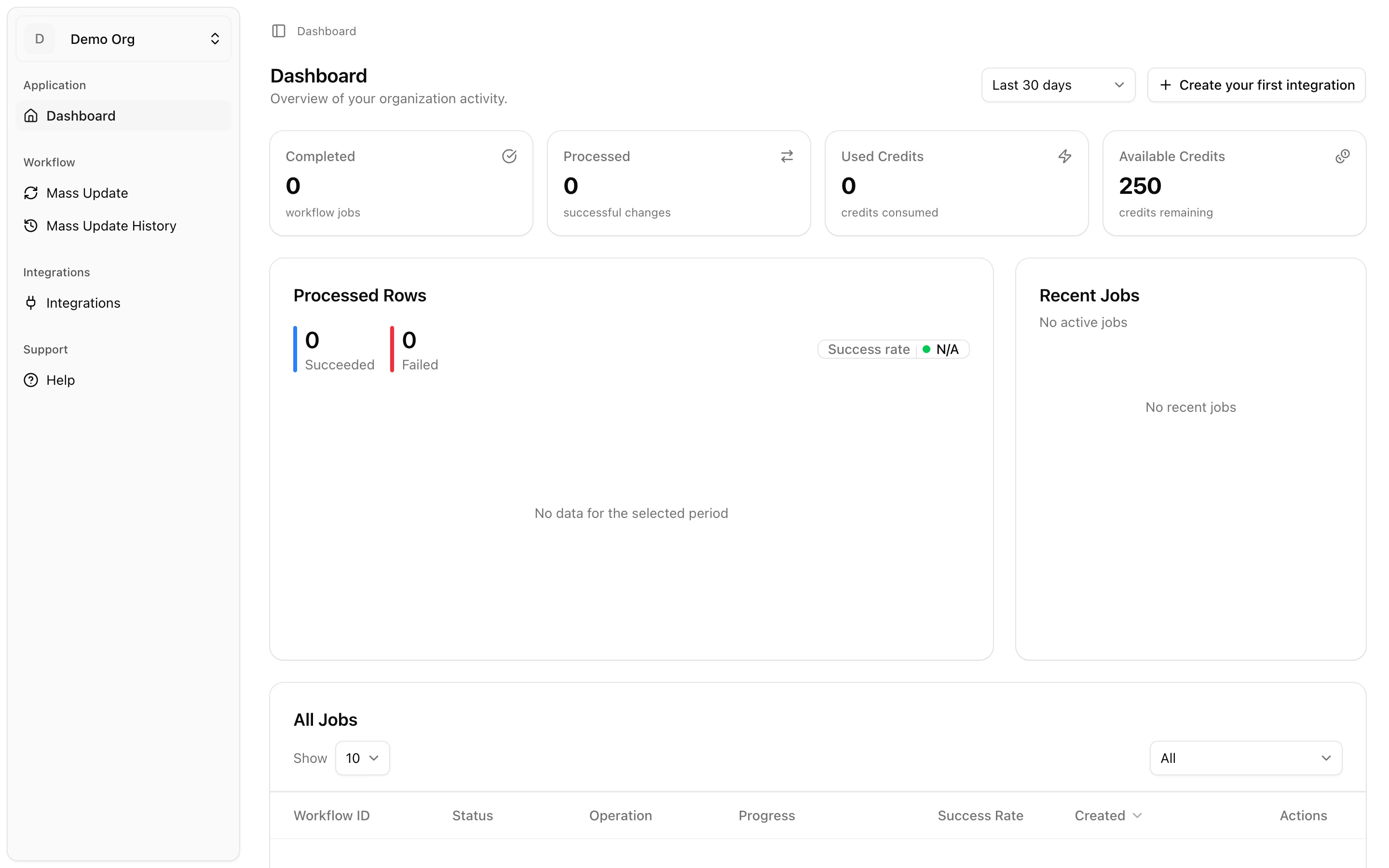
- You'll land on the VineMerge dashboard. You're in.

What the organization name is used for
Your organization name appears on invoices, on the invitation emails you send to teammates, and as part of the URL for your workspace. Pick something your teammates will immediately recognize — usually your firm's name or a short version of it.
Renaming your organization later
You can rename your organization at any time from Organization Settings → General. No data is lost, and existing invites and links keep working.
Next steps
Need help with this topic right now? Contact support.